 Scam protection
Guide
How to block spam and fraudulent numbers on your phone
Blocking a single nuisance number takes seconds. Stopping a wave of them takes a layered approach, because scammers rotate numbers faster than any blocklist can keep up. The most effective setup combines your phone's built-in blocking, your network's spam filtering and a simple reporting habit.
This guide covers iPhone, Android, landlines and network-level tools, with the trade-offs you should know before you switch on aggressive filtering.
Think in layers
- Phone-level blocking - stops a specific number from ringing you.
- Phone-level screening - silences or filters unknown callers.
- Network-level filtering - your provider blocks known nuisance numbers before they reach you.
- Reporting - feeds the data that makes the other layers work.
No single layer catches everything. Used together, they cut the volume dramatically without requiring you to install anything dubious.
Blocking on iPhone
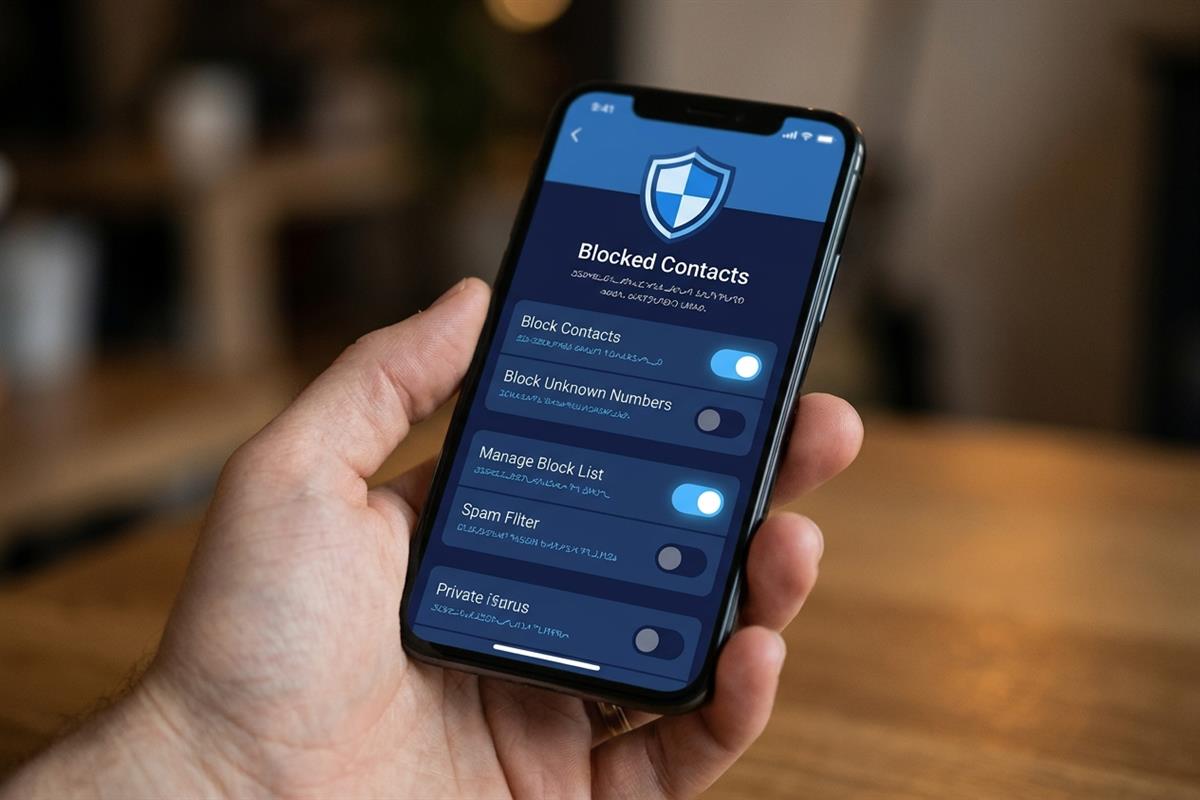
To block one number, open the Phone app, find the number in Recents, tap the information icon and choose Block this Caller. To manage the list, go to Settings > Phone > Blocked Contacts.
For unknown callers, iOS offers Silence Unknown Callers under Settings > Phone. Calls from numbers not in your contacts go straight to voicemail and appear in Recents. This is effective against rotating numbers, but it can also silence genuine calls from a hospital, school or courier. A delivery that needs a signature may not leave a message.
Live Voicemail, where available, shows a transcription as the caller speaks, so you can decide whether to pick up. Third-party call-filtering apps can add community blocklists, but they require permissions and may collect call data. Read the privacy policy before installing one.
Blocking on Android
The exact steps vary by manufacturer, but the pattern is consistent. Open the Phone app, long-press the number in the call log and choose Block or Block number. On many devices you can also report the number as spam at the same time.
Google Pixel and many stock Android phones include Caller ID & spam under Phone settings. Samsung devices offer similar spam protection under Call settings. These features use Google's or Samsung's databases and can warn you before you answer.
Android also supports third-party call-screeners. As with iOS, check permissions and privacy before installing. A call-screening app that uploads your contacts to an unknown server is a poor trade.
Blocking on a landline
Many UK landline providers offer a network code to block the last caller, and most modern handsets have a call list you can block from. BT, for example, offers Call Guardian on some plans, which asks unknown callers to announce themselves before the phone rings. Other providers offer similar screening services.
If you use a traditional handset without blocking features, a standalone call blocker can sit between the wall socket and the phone. These devices maintain their own blocklist and are useful for people who receive a lot of nuisance calls.
Network-level spam filtering
UK networks offer nuisance-call filters that work before the call reaches your phone. The names and settings vary:
- EE - spam and nuisance call filtering is available through the EE app or account settings on supported plans.
- O2 - offers a nuisance-call filter through its app or customer services on eligible tariffs.
- Vodafone - provides call screening and spam protection options through its app and account tools.
- Three - offers spam call filtering on supported plans and devices.
Check your provider's current help pages, because features move between plans and some are free only for a trial period. A network filter is especially useful if you use a landline-style phone or a basic handset without a spam database.
What to do when the numbers keep changing
If blocking one number simply produces another, stop playing whack-a-mole. Switch to screening: silence unknown callers, enable network filtering and let genuine callers leave a message. Most legitimate organisations will leave a voicemail or send a text. A caller who refuses to do either is not someone you need to speak to immediately.
For persistent campaigns, report the pattern rather than individual numbers. Your provider and the ICO can act on evidence of repeated behaviour, and community reports help other people recognise the range.
Keep one route open
If you silence all unknown callers, tell your GP surgery, school, workplace and delivery providers to leave a voicemail or send a text. Screening works best when legitimate callers know how to reach you.
Report first, then block
Blocking stops the call reaching you; reporting helps stop the campaign reaching everyone else. Before you block, note the number, time and what was said. Report fraud to Action Fraud, consent breaches to the ICO and telecoms nuisance to Ofcom or your provider. Then block the number.
On WhoCalled.org.uk, you can also add a community report to the number's page. That report helps the next person who searches the number decide whether to answer. It is not a substitute for an official complaint, but it is a useful public record.
Can scammers tell they have been blocked?
Usually not. The call fails to connect or goes to voicemail, and most networks do not tell the caller that a block is in place. Some automated systems may detect that a number no longer answers and remove it from their list; others will keep trying from new numbers. That is why screening, rather than blocking alone, is the more durable strategy.
The setup we recommend
- Turn on your phone's spam protection or caller ID warning feature.
- Enable network-level nuisance filtering if your provider offers it.
- Block the specific numbers that get through.
- Keep a simple log and report the worst offenders.
- Review your settings every few months as providers change their tools.
If you want to check a number before blocking it, use the UK number lookup. For the wider plan, read how to stop nuisance calls in the UK and the call-blocking guide.
Before you act on a call: check the number in our
UK number lookup, never share a one-time code with a caller,
and use the protection guides if you are unsure.
 Frequently asked questions
Does blocking a number stop voicemail?
It depends on the phone and network. Some blocked callers can still leave a voicemail, so check your voicemail settings and use a network-level blocker if needed.
Can scammers tell they have been blocked?
Usually not. The call simply fails to ring you, and many networks do not tell the caller that a block is in place.
What if the number keeps changing?
Use network-level spam filtering, silence unknown callers or a call-screening service rather than blocking numbers one at a time.
Should I block or report first?
Report first if the call was fraudulent or abusive, because the details help investigators. Then block the number to stop repeat calls.
 Related articles
All
 Check a number before you call back
You can also read the latest community reports, browse UK area codes or open the protection guides.